Learn How to Use Cash Manager

Watch setup guides, product walkthroughs, and next-step videos.

Skip to Videos
  • What is the Business Cash Manager?

    What is the Business Cash Manager?

    Business Cash Manager is a software solution designed to help small business owners maintain better cash visibility. This short overview shows how Cash Manager brings together your business cash accounts, upcoming bills, expected payments, money reserved for later, monthly activity, and projected cash balances in one place. Watch the Get Started playlist to learn how to begin using Cash Manager.

  • Cash Manager   Step 1  Add Cash Accounts
    • 8/10/26

    Cash Manager Step 1 Add Cash Accounts

    The video follows the first setup step from the demo account, using an operating checking account and business savings account before showing the Dashboard at 1 of 4 steps complete.

  • Cash Manager   Step 2  Add Bills
    • 8/10/26

    Cash Manager Step 2 Add Bills

    Continue setting up Cash Manager by adding the bills and other payments your business expects to make. In this walkthrough, you will see how to add recurring and one-time bills, choose the payment schedule, assign each bill to an account and category, and enter the next due date. Once the bills are added, Cash Manager begins using them to build your projected cash picture. You can start seeing how upcoming payments may affect the business before completing the remaining setup steps. This is Step 2 of the Cash Manager setup process.

  • Cash Manager   Step 3  Add Receivables
    • 8/10/26

    Cash Manager Step 3 Add Receivables

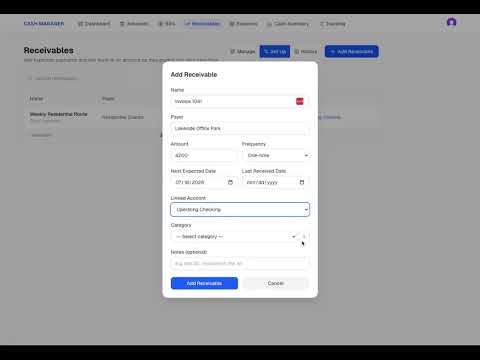
    Continue setting up Cash Manager by adding the payments your business expects to receive. In this walkthrough, you will see how to add recurring and one-time receivables, choose the account where the money is expected to arrive, assign a category, and enter the expected payment date. Cash Manager uses this information to include upcoming income in your projected cash picture before the payment arrives. This is Step 3 of the Cash Manager setup process.

  • Cash Manager   Step 4  Set Up Reserves
    • 8/10/26

    Cash Manager Step 4 Set Up Reserves

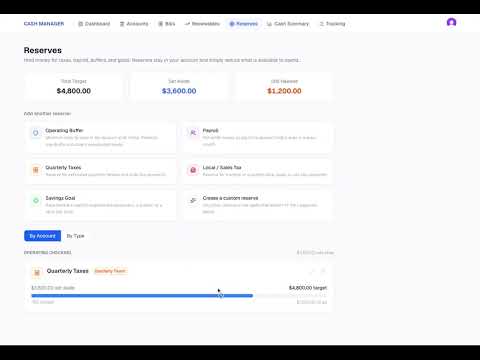
    Complete the Cash Manager setup process by adding money set aside for future business needs. In this walkthrough, you will see how to create reserves for quarterly taxes, payroll, and an operating buffer. You will also see how to enter a target amount, record what has already been set aside, and connect each reserve to a cash account. The money remains in the account, but Cash Manager separates it from the amount shown as available to use. After the reserves are added, the Dashboard shows the complete cash position: Cash on Hand Cash Reserves Cash Available This is Step 4 of the Cash Manager setup process.

  • Understanding Your Cash Picture with the Cash Manager
    • 8/10/26

    Understanding Your Cash Picture with the Cash Manager

    After completing the four Cash Manager setup steps, the next step is understanding what the information actually shows. In this walkthrough, we review the Cash Manager screens using the cash accounts, bills, expected receivables, and reserves entered during setup. You will see how the information connects to create a current and projected view of the business cash position. The account appears to remain in a healthy position through the current year. When the projection extends into the following year, the cash runs short. That future view gives the business owner time to recognize the problem and consider what may need to change before the account reaches that point. This video shows how Cash Manager helps you look beyond the balance today and see where the business cash is headed based on the information entered.

  • Entering Transactions After Initial Account Setup
    • 8/10/26

    Entering Transactions After Initial Account Setup

    In this walkthrough, you will see how to add transactions to Cash Manager and keep the account aligned with the balance shown in your banking app. The video demonstrates how to: Add money in and money out transactions Compare the Cash Manager balance with the bank balance Identify when the amounts do not match Add missing activity and confirm when the balances agree Reconcile the account Review completed transactions in the Cash Summary Use the Tracking screen to confirm which bills were paid and which expected payments were received Once transactions are added, the Cash Summary begins showing what has actually happened in the account. The Tracking screen provides the item-level view needed to confirm that expected bills and payments were completed.

  • Update Recurring Transactions in Just a Few Minutes a Week
    • 8/11/26

    Update Recurring Transactions in Just a Few Minutes a Week

    Keeping your Business Cash Manager current does not have to take much time each week. In this video, we continue from Entering Transactions After Initial Account Setup and show how to update recurring bills and receivables once they have been paid or received. You’ll see how recurring transactions can be updated with just a few clicks, how the next scheduled item is created automatically, and what happens when you fall a week or two behind. We also leave an overdue client invoice open because the payment has not been received, allowing the Cash Manager to continue reflecting what is actually happening in the business. In this video, we cover: • Updating recurring bills and receivables • Catching up after missing a week or two • How recurring items advance automatically • When you still need to enter a transaction manually • How long a typical weekly update can take If you have not completed the initial setup yet, start with the Get Started playlist to add your cash accounts, bills, receivables, and reserves. Then continue with the Next Steps videos before beginning your regular weekly Cash Manager routine.

  • Adding Missing Transactions to Complete Your Cash History
    • 8/13/26

    Adding Missing Transactions to Complete Your Cash History

    Keeping your Business Cash Manager current also means making sure your transaction history reflects what actually happened in your business. In this video, we continue from Updating Recurring Transactions in Just a Few Minutes a Week and fill in transactions that occurred while we were working through the initial setup process. You’ll see how adding the missing July activity creates more continuity in the Cash Summary and helps the account better reflect the actual movement of cash from month to month. We also look at why some transactions are still missing from the current month. Some bills have not been paid yet, some receivables have not been received, and other recurring activity is still scheduled for later in the month. In this video, we cover: • Adding missing historical transactions • Filling gaps between your initial setup and current activity • Reviewing your Cash Summary after updating transactions • Identifying bills and receivables that are still upcoming • Distinguishing between missing transactions and activity that has not happened yet If you have not completed the initial setup yet, start with the Get Started playlist to add your cash accounts, bills, receivables, and reserves. Then continue with the Next Steps videos to build out your transaction history before beginning your regular weekly Cash Manager routine.

  • Reconciling Your Account with Bank Transactions
    • 8/14/26

    Reconciling Your Account with Bank Transactions

    In this video, we demonstrate how to reconcile your Business Cash Manager account to your online banking or banking app. You’ll see how to update transactions that have cleared your bank account, confirm that your Cash Manager balance matches your actual bank balance, and use the Reconcile feature to mark the transactions you have already reviewed. In this video, we cover: Updating cleared transactions Confirming your Cash Manager balance matches your bank balance Reconciling the account How reconciled transactions are marked * Keeping track of which transactions have already been reviewed Regular reconciliation helps you keep the cash information in Business Cash Manager aligned with what is actually happening in your bank account.