Update Recurring Transactions in Just a Few Minutes a Week
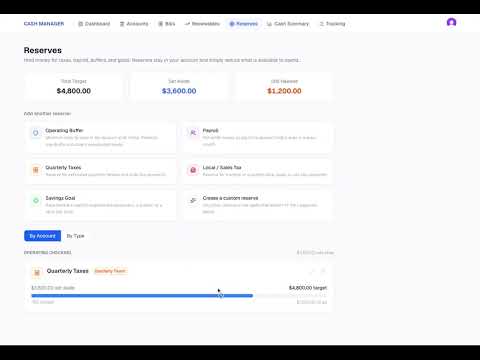
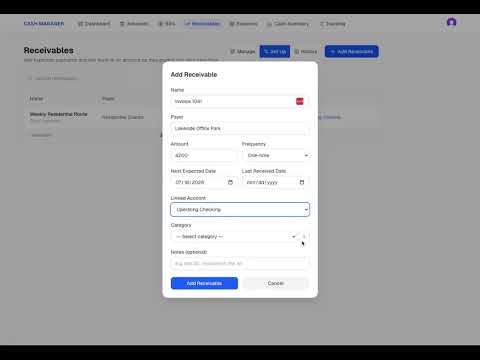
Keeping your Business Cash Manager current does not have to take much time each week. In this video, we continue from Entering Transactions After Initial Account Setup and show how to update recurring bills and receivables once they have been paid or received. You’ll see how recurring transactions can be updated with just a few clicks, how the next scheduled item is created automatically, and what happens when you fall a week or two behind. We also leave an overdue client invoice open because the payment has not been received, allowing the Cash Manager to continue reflecting what is actually happening in the business. In this video, we cover: • Updating recurring bills and receivables • Catching up after missing a week or two • How recurring items advance automatically • When you still need to enter a transaction manually • How long a typical weekly update can take If you have not completed the initial setup yet, start with the Get Started playlist to add your cash accounts, bills, receivables, and reserves. Then continue with the Next Steps videos before beginning your regular weekly Cash Manager routine.